Billing & Quota Query (Team Admin)
Platform Login
Log in to the Operations Analytics Platform Admin portal, and click the 【Billing】 module at the top.
Team Quota Configuration
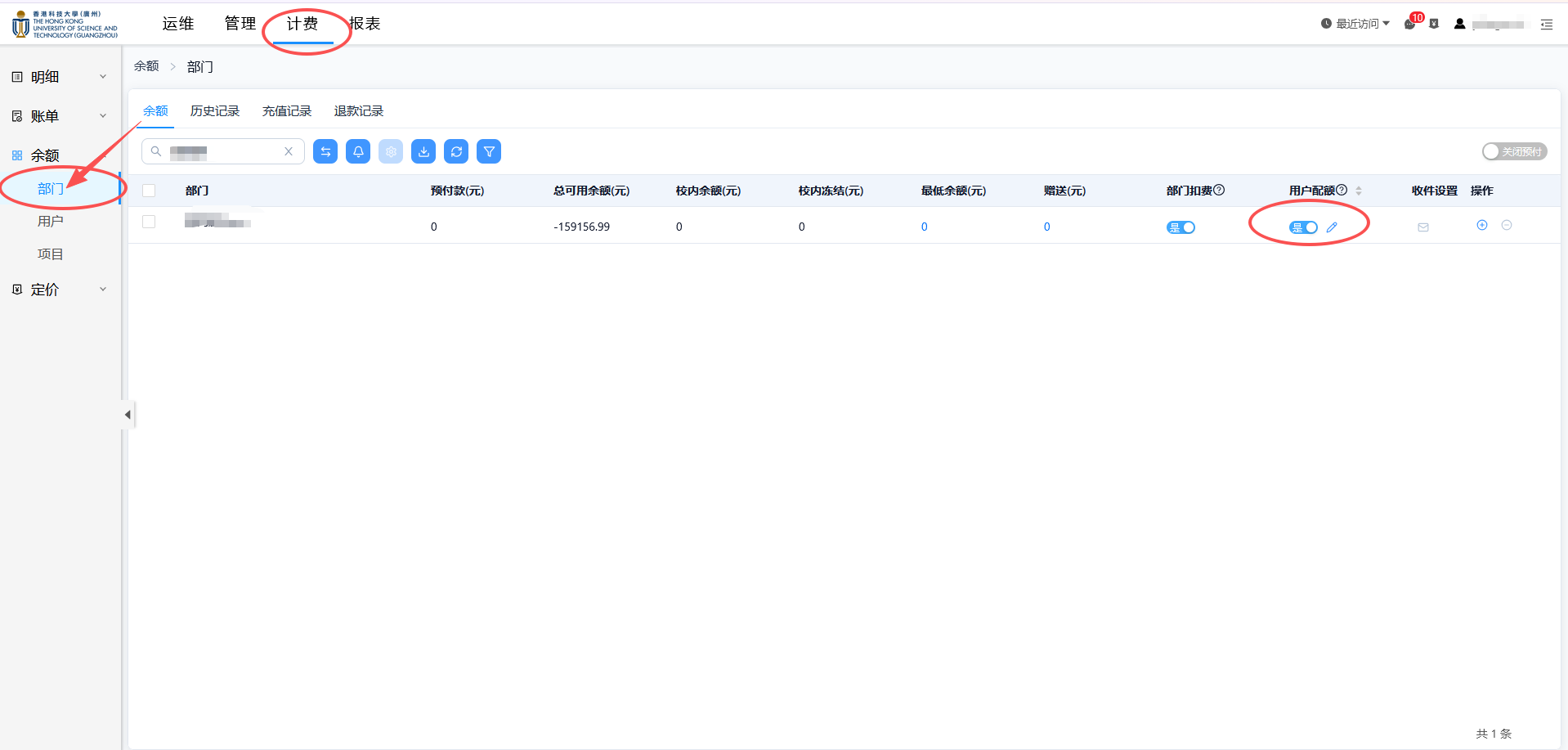
- Select 【Balance】-【Department】 on the left, and check whether the 【User Quota】 switch is enabled. If it is not enabled, please contact the HPC team to turn on this feature.
-
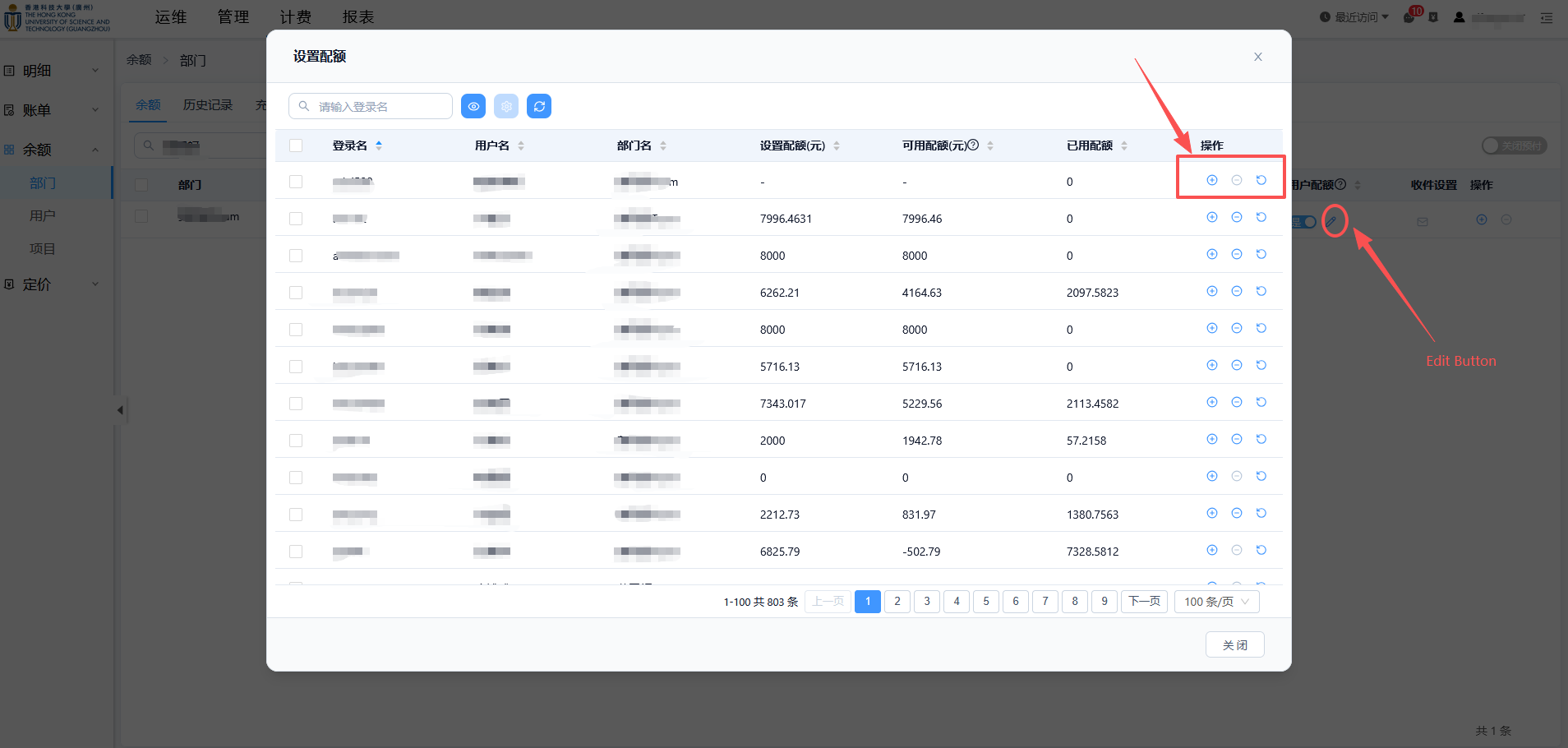
Click the edit button icon to open the user list window.
-
Click the "+" or "-" buttons on the right to set the fee quota for the corresponding user.
info
- If the quota and available quota are shown as "-", no fee quota has been set.
- If the available quota is set to "0", the user has no quota (job submission is not allowed).
- If the available quota is negative, the user has exceeded the quota and job submission is not allowed.
Team Billing Details Query
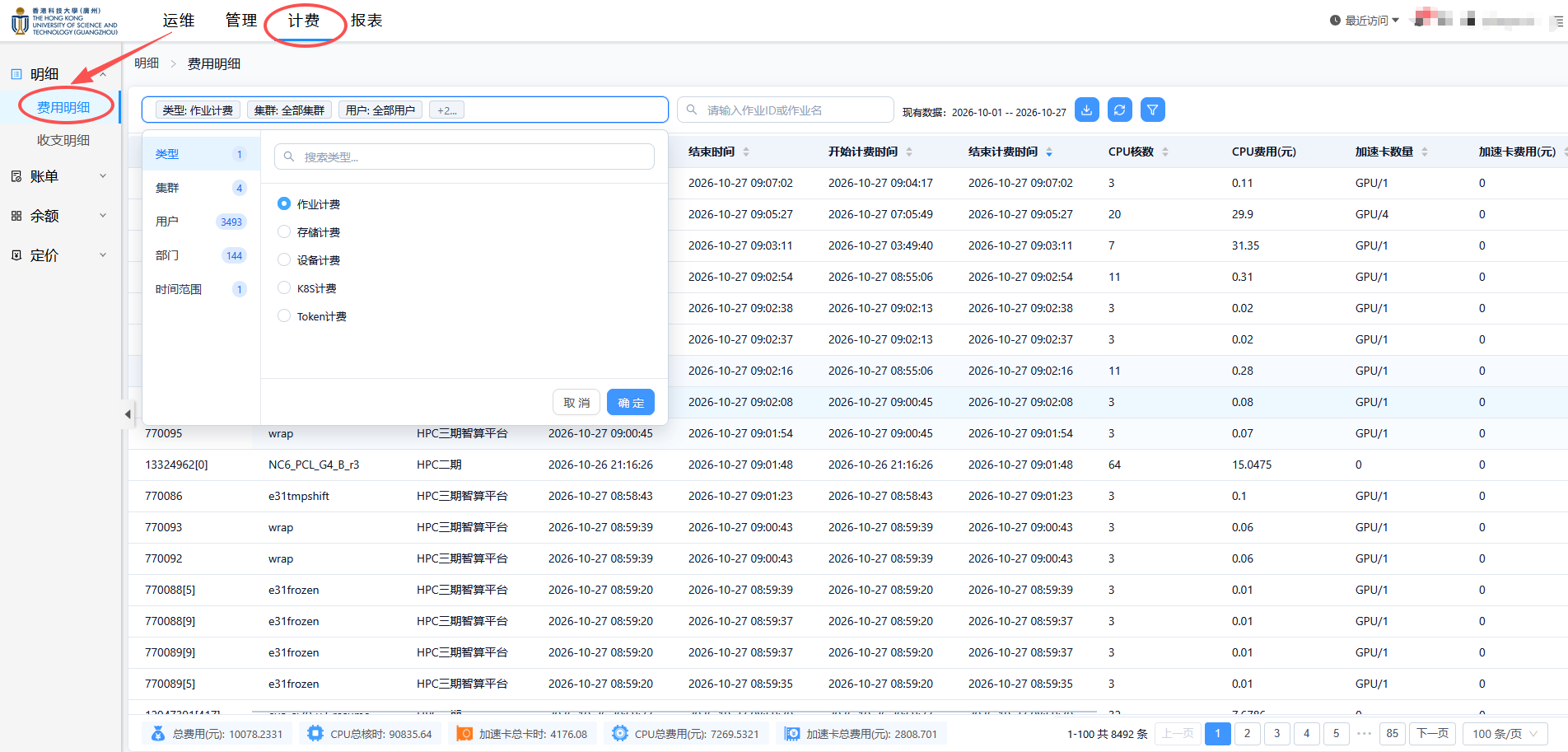
- Select 【Billing】-【Details】-【Billing Details】 to open the billing details page.
- Use the filters at the top to query by cluster, fee type, user, and time range.
info
- Job billing: Phase II (SLURM+AI) jobs, Phase III and Phase IV SLURM jobs
- K8S billing: Phase III and Phase IV AI jobs
- Storage billing: Phase II, Phase III, and Phase IV storage fees
- Device billing: server colocation fees
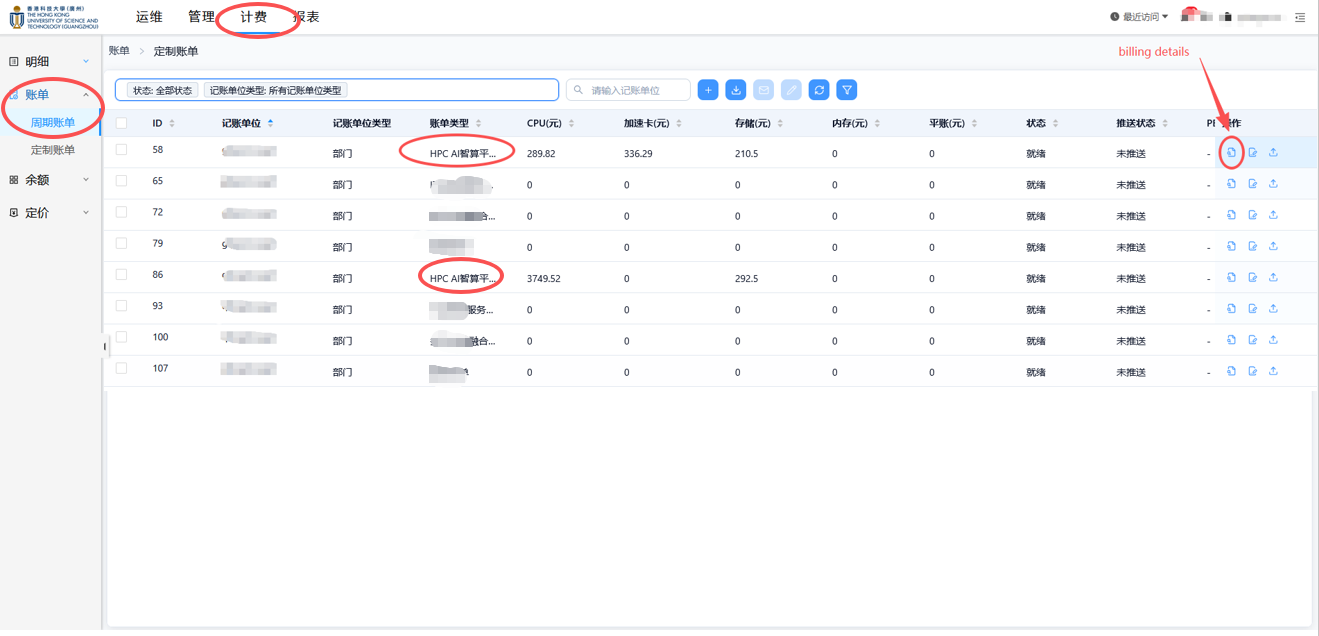
Bill Query
-
Click 【Periodic Bill】, select the billing month, and query the monthly bill.
-
Select 【HPC AI Computing Platform】 as the bill type.
-
The details on the right side of the bill show the associated fee details.