WorkBuddy AIGC Large Model Configuration
Prerequisites
Users must first obtain the large model information assigned by the IT department, including:
- Large model API endpoint
- API Key (please keep it secure)
- Model name
Downloading WorkBuddy
-
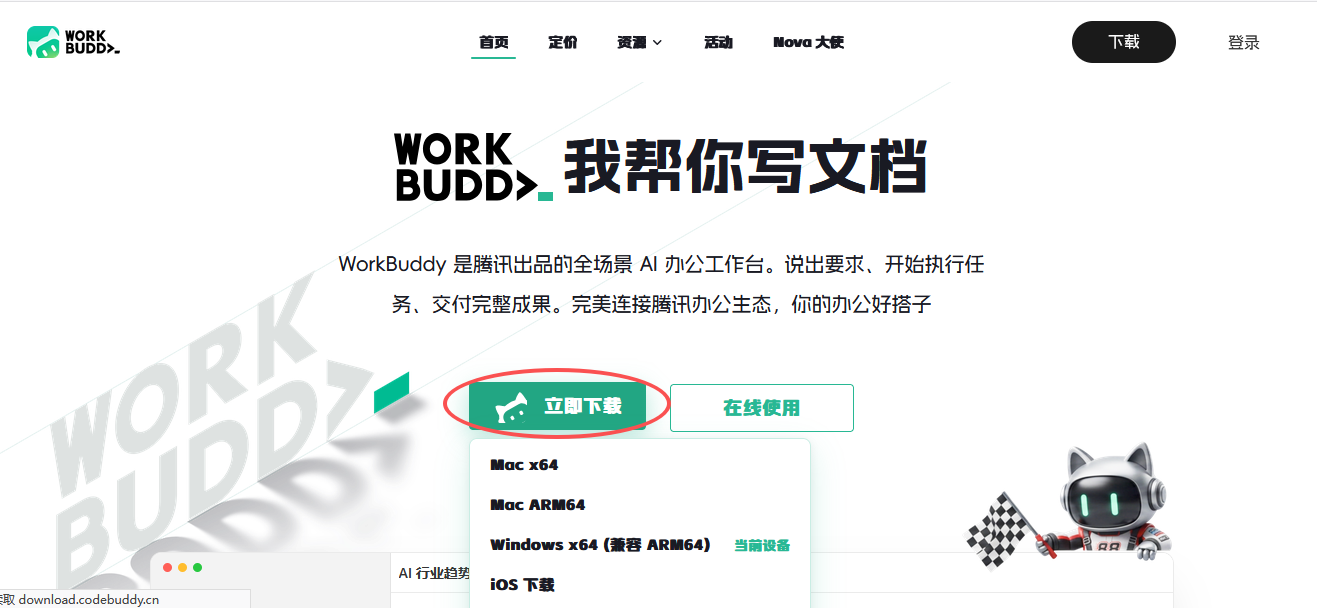
Open the WorkBuddy official website in your browser and download the installation file according to your operating system. Official website: https://www.workbuddy.cn/
-
Open the installation file, follow the prompts to install, and log in.
Configuring the Local Large Model
-
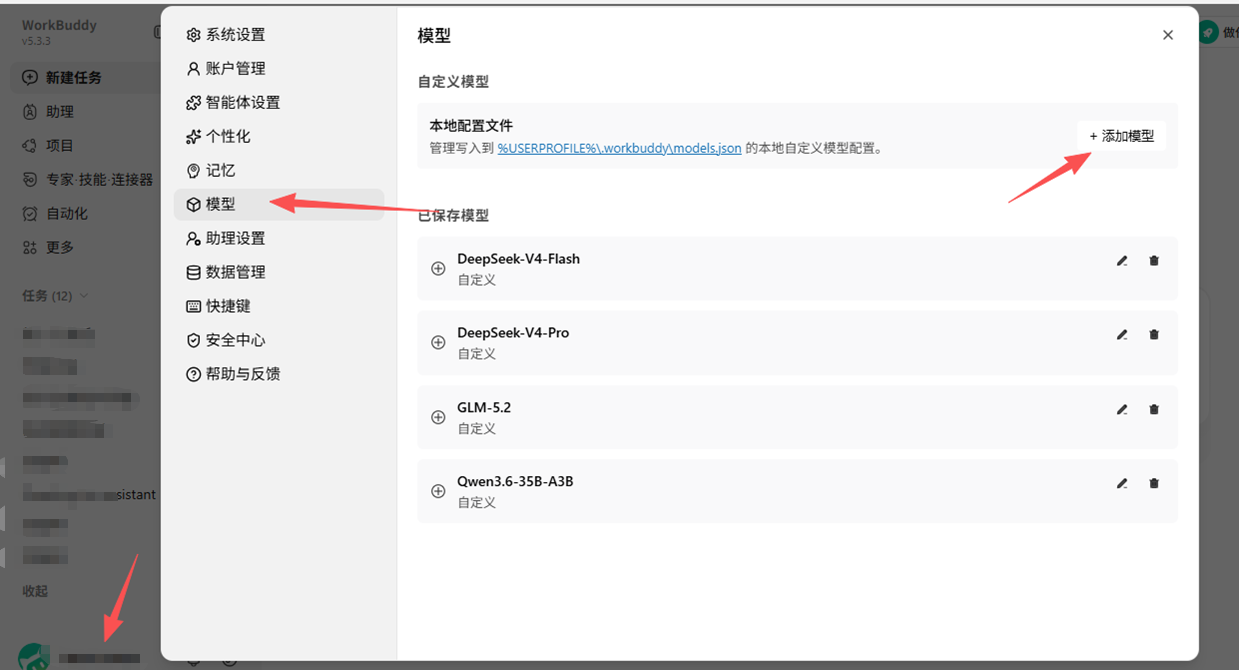
Click the bottom-left corner, select Models from the left sidebar, and click Add Large Model.
-
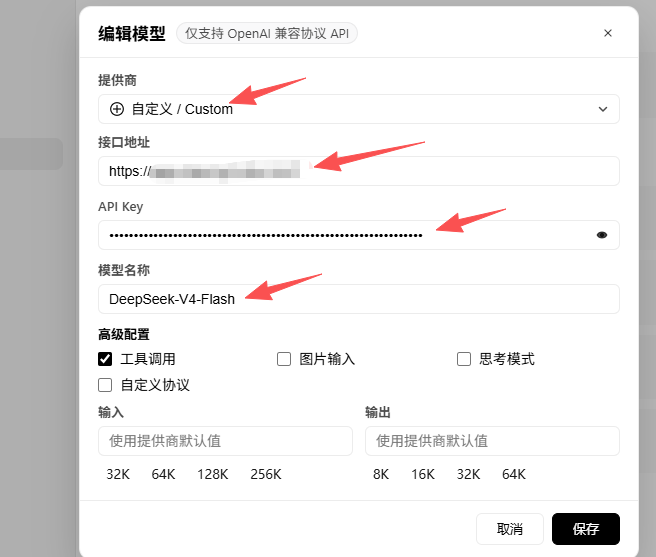
Configure the settings in the pop-up window:
- Provider: Select Custom
- API Endpoint: Enter the API endpoint provided by the IT department
- API Key: Enter the API Key provided by the IT department
- Model Name: Enter the model name provided by the IT department Only one model can be configured at a time. Click Save after filling in all fields.
Disabling Experience Optimization

Switching the Chat Model
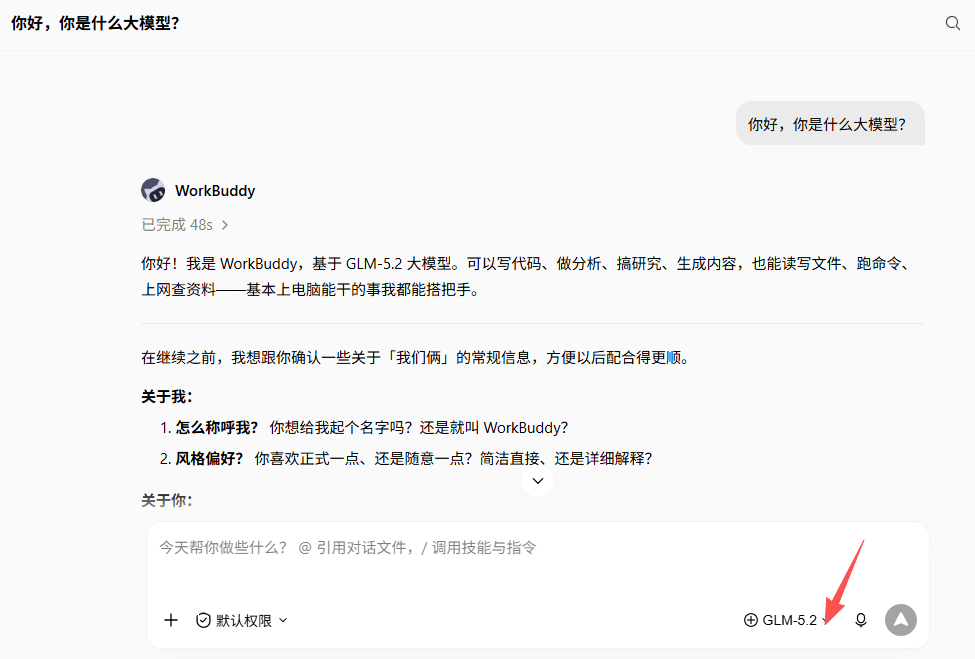
- In the Tasks interface, you can select a large model from the dropdown menu at the bottom-right of the chat box. Scroll down to the very bottom, and you will see the newly configured model name under the Custom group.
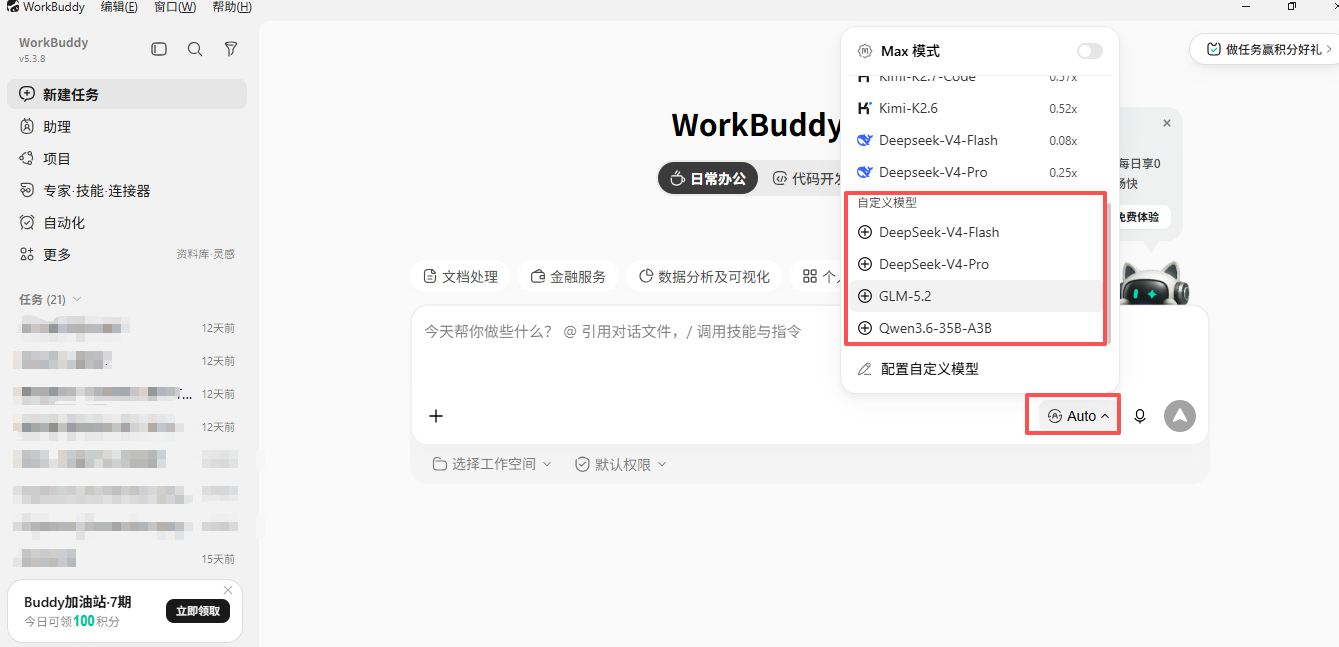
- Select a campus large model for task-based conversations and proceed with subsequent work.